

Fitted CV user guide
Fitted CV gives you a CV fitted to every job ad in a few minutes. It rewrites the lines recruiters read first so they match the ad, using only things you really did, and makes a ready-to-send PDF in each of your languages. Fitted CV is the first product from FITTED.
Why fit your CV to each ad? Recruiters first scan job titles, employers and keywords, in seconds. In a study of almost 2 million applications, tailored CVs got 1.85× as many interviews (Huntr, 2026). Fitted CV makes that tailoring quick, and keeps it honest.
Your first fitted CV in five steps
- Bring your CV in. Import your PDF or Word CV, or your LinkedIn or Indeed profile saved as PDF (section 2).
- Connect an AI. A free one is fine (section 3).
- Paste the job link. Fitted fetches the ad, company and role (section 4).
- Draft with AI, then check every line. Nothing goes on your CV until you confirm it's true (section 5).
- Pick a style and build. You get one PDF per language, plus a row in your applications list (sections 5 and 6).
The rest of this guide walks through every page of the app in the order you meet them.
1. Getting started
Download Fitted from getfitted.nl. It is free for your first 3 jobs.
| Device | What to download | First start |
|---|---|---|
| Windows 10 or 11 | Fitted.exe | Windows may show "Windows protected your PC". Click More info, then Run anyway. |
| Mac with Apple silicon (M1 or newer) | Fitted-mac-apple-silicon.dmg | Open the file and drag Fitted into Applications. If macOS says it can't check Fitted: System Settings → Privacy & Security → Open Anyway. |
| Mac with Intel | Fitted-mac-intel.dmg | Same as above. |
| Android 7 or newer | Fitted-android.apk | Tap the downloaded file. Android asks once to allow installs from your browser: switch on Allow from this source and go back. |
These warnings appear only the first time. Updates install from inside Fitted without them.
You need an AI account for drafting lines, translating and importing your CV. Several AIs have a free option; Fitted helps you set one up on the next page.
Where your files live
- Windows and Mac: a folder called Fitted on your Desktop, with your CV, settings, the applications list (applications.xlsx) and a folder per job with its PDFs.
- Android: inside the Fitted app. Use Share to send a PDF anywhere.
2. Set up your CV
You do this once. Fitted turns your existing CV into its own editable version, without adding anything that isn't in it.
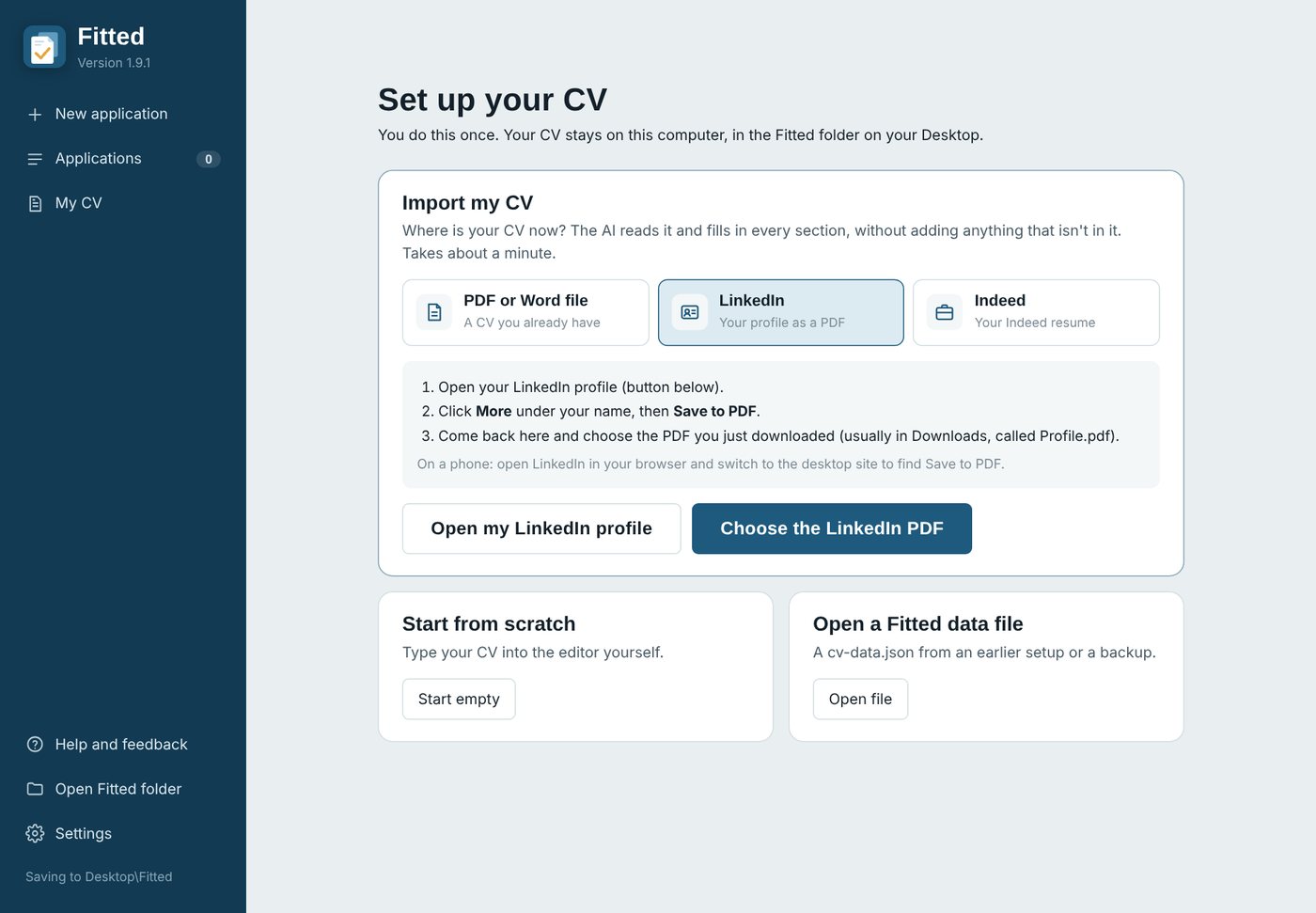
Where is your CV now? Pick one of three sources:
| Source | What to do |
|---|---|
| PDF or Word file | Click Choose CV file and pick your CV (.pdf or .docx). |
| Click Open my LinkedIn profile, then More → Save to PDF under your name. Come back and click Choose the LinkedIn PDF (usually Profile.pdf in Downloads). On a phone, use the desktop version of the LinkedIn site. | |
| Indeed | Click Open my Indeed profile, open the ⋮ menu at your resume and choose Download. Come back and click Choose the Indeed PDF. |
LinkedIn and Indeed don't let other apps read your profile directly, so the PDF download is the way in.
AI that reads your CV. If no AI is set up yet, the box above the button asks for one. Pick a provider, click Get a key, paste the key and click Connect. See section 3 for which AI to choose.
The import takes about a minute. Then Fitted opens My CV so you can check every section and click Save changes.
Other ways to start
- Start from scratch: type your CV into the editor yourself.
- Open a Fitted data file: load a cv-data.json from an earlier setup or a backup.
3. Settings: AI, languages, licence
Open Settings at the bottom of the sidebar (on a phone: the Settings tab). Your AI key stays on your own device.
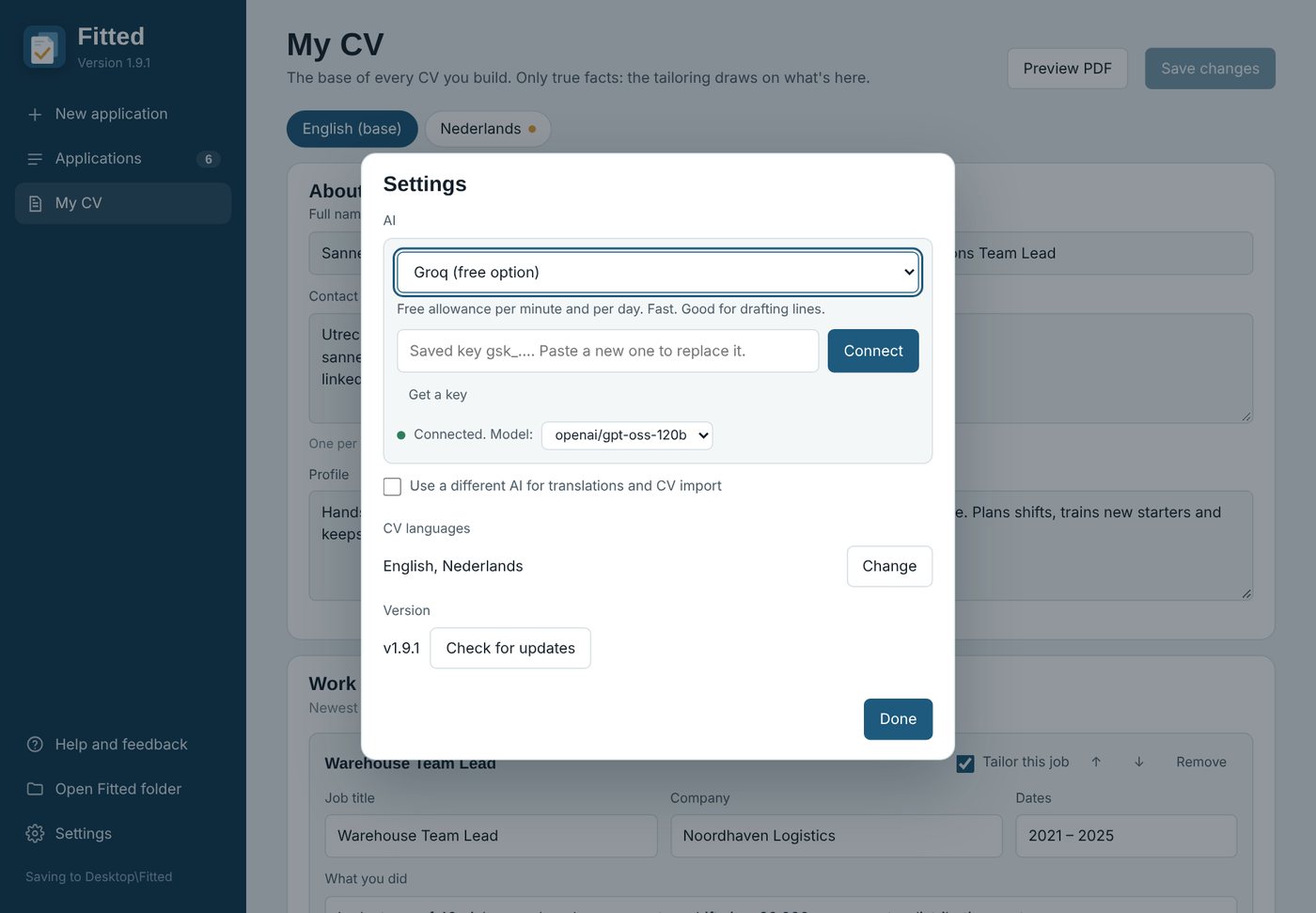
Choosing an AI. Fitted uses your own AI account, so you pay the AI provider directly, or nothing on a free plan.
| AI | Cost | Good to know |
|---|---|---|
| Claude (Anthropic) | Paid per use | Most reliable for translations and CV import. |
| Google Gemini | Free plan available | On the free plan Google may use what you send to improve its products; Fitted shows a warning. |
| Groq | Free allowance | Fast; good for drafting lines. |
| OpenRouter | Free models available | One key for many AI models. |
| Local AI (Ollama) | Free | Runs on your own computer, nothing leaves it. Install Ollama and download a model first. |
| Other compatible service | Depends | For services that work like OpenAI's. |
Pick one, click Get a key, paste it and click Connect. Fitted tests the key and picks a suitable model; you can change the model afterwards.
A different AI for translations and CV import. Tick this to use a stronger AI for the heavy jobs (translating your whole CV, importing it) and a cheaper or free one for drafting lines.
CV languages. English is always the base. Click Change to add up to 9 more: Dutch, German, French, Spanish, Italian, Portuguese, Swedish, Danish and Norwegian. Your AI translates your CV once; you can check and edit each translation under My CV.
Licence. Shows your free jobs left. After buying, paste your licence key here and click Activate. One licence works on 2 devices; use Deactivate on this computer to move it.
Version. Shows your version and lets you check for updates.
4. New application
This is where you tailor your CV to one job ad, in three steps on one page.
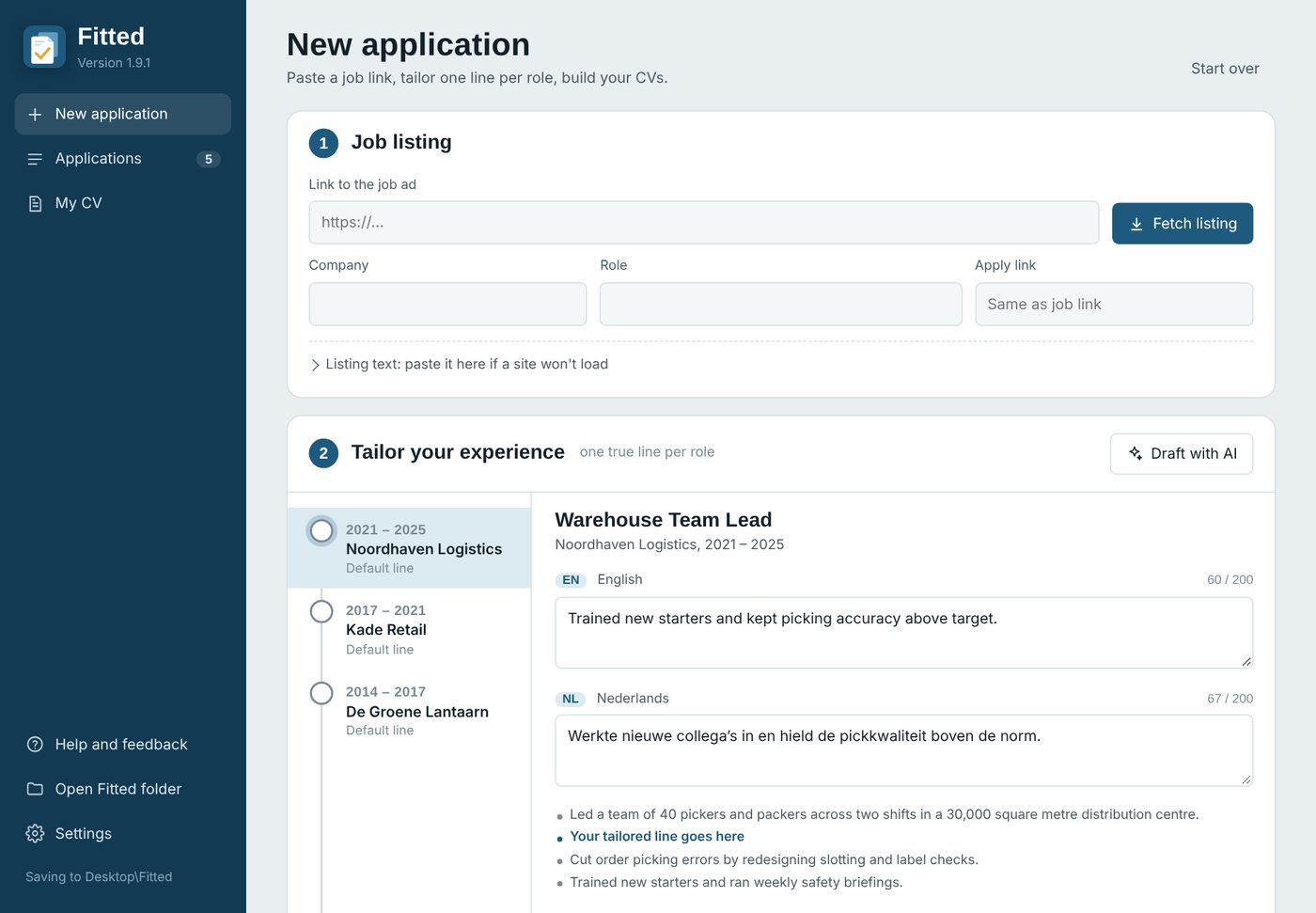
Step 1: Job listing
- Paste the link to the job ad and click Fetch listing. Fitted fills in the company, the role and the apply link. Check them.
- A site won't load? Open Listing text, and paste the ad text you copied from your browser.
- The badge at the top right says which CV to send, based on the ad's language (for example "Send the Dutch version").
On Android you can also start from the ad itself: tap Share on a job ad in your browser, LinkedIn or a job app, and choose Fitted.
Step 2: Tailor your experience
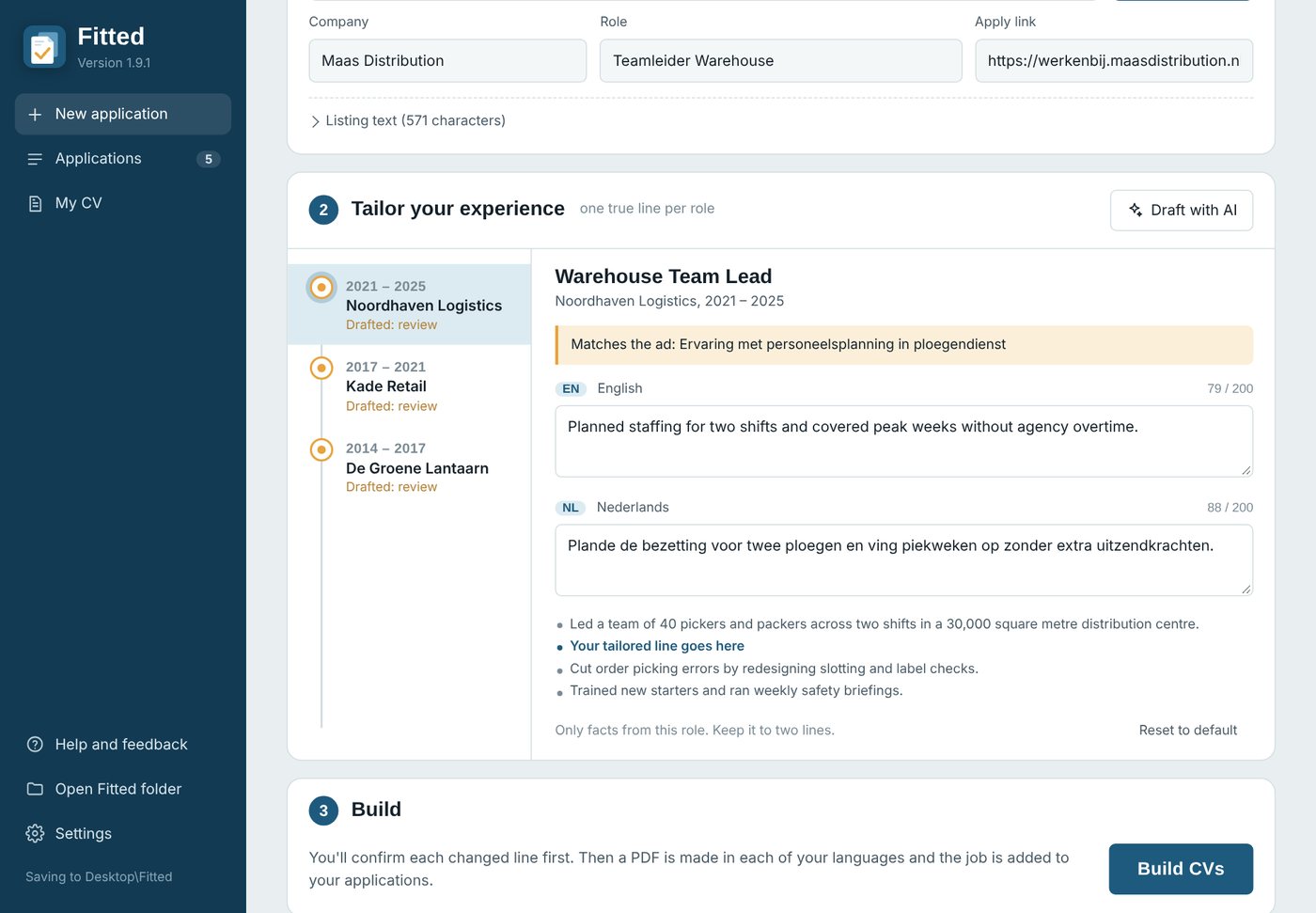
- Click Draft with AI. For each job, the AI writes one line that matches what the ad asks for, using only facts from that job and your extra facts.
- The yellow note shows which requirement in the ad the line answers.
- Click each job on the left to review its line, in every language. Change the wording freely; the line should stay true and under 200 characters.
- The list under the text box shows where the line goes: as the second point of that job.
- Reset to default puts back that job's standard line.
Dots on the left: grey = default line, amber = drafted by the AI and not yet reviewed, green = checked by you.
Fitted Pro extras (also included in the free trial)
- Reworded points: up to 2 more points per job, reworded for the ad with the same facts. They appear under the job's line; Keep the original undoes one.
- Profile and skills for this ad: under the jobs, your profile rewritten for the role and your skills with the most relevant first. Keep my own profile and Keep my order undo them.
With Fitted (not Pro) these places show a Get Pro button.
Step 3: Build
Click Build CVs. You first confirm each changed line (next section), then Fitted makes a PDF in each of your languages and adds the job to Applications.
Start over (top right) clears the page for the next job.
5. Confirm each changed line
Nothing is built until you have confirmed every changed line. Recruiters ask about what's on your CV, so each line has to be something you can talk about.
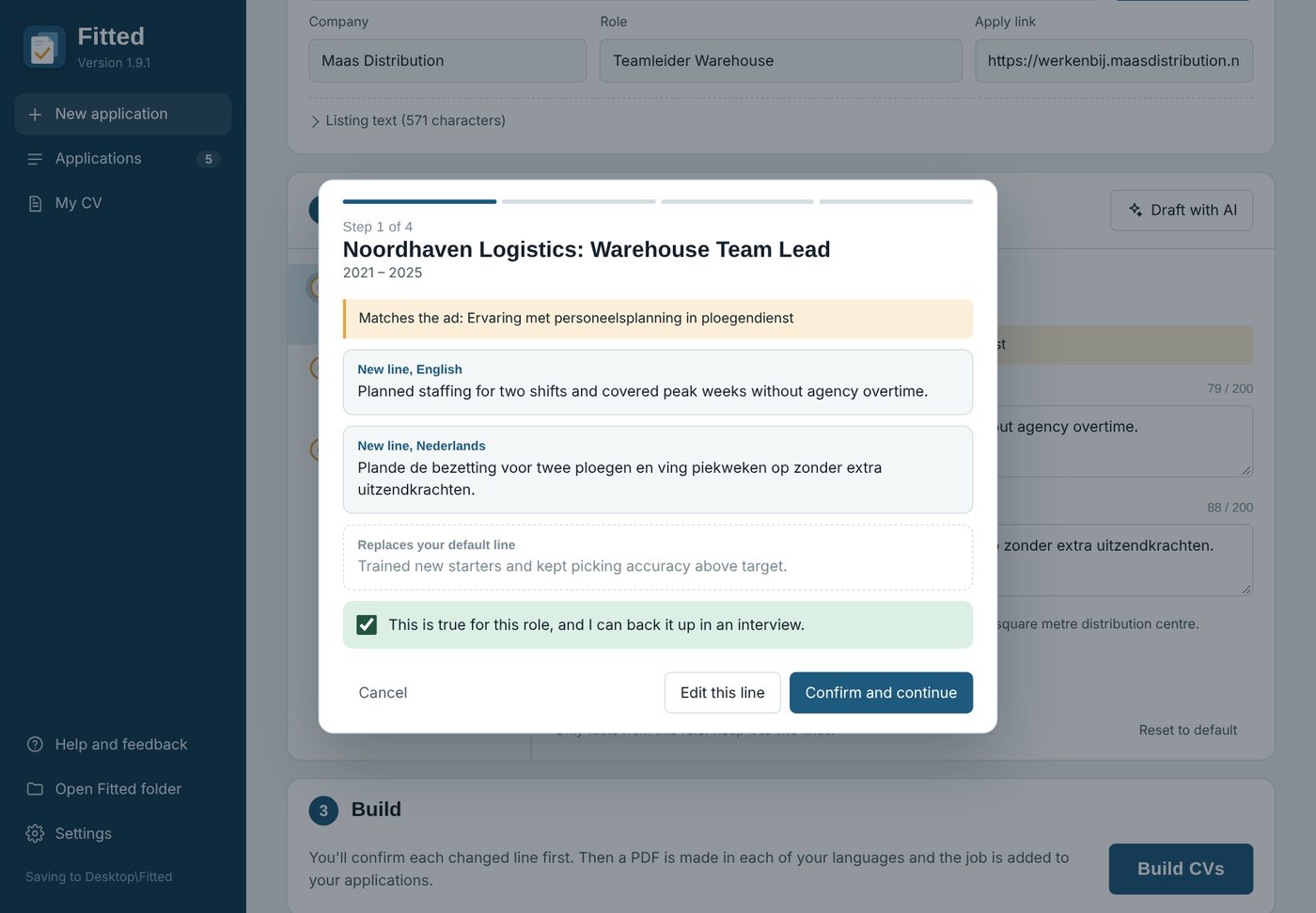
For each job with a new line you see:
- the requirement in the ad it answers (yellow);
- the new line in each language;
- the default line it replaces.
With Pro, reworded points are listed in the same step as the job's line, and a separate step shows your new profile. You confirm those the same way.
Tick This is true for this role, and I can back it up in an interview, then click Confirm and continue.
- Edit this line takes you back to change the wording.
- Back returns to the previous job.
- Cancel stops without building anything.
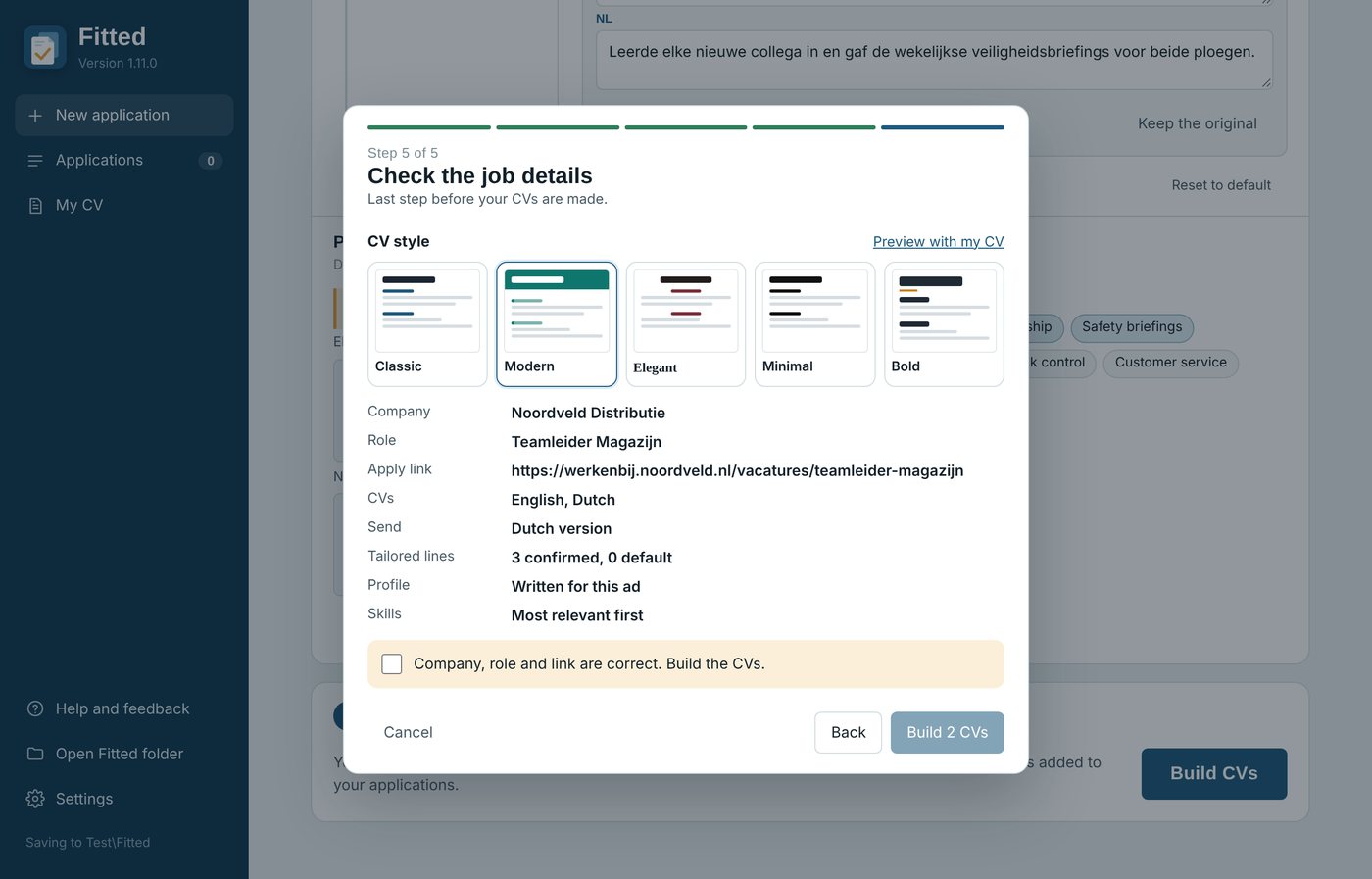
The last step, Check the job details, shows the company, role, apply link, languages and which version to send. Tick that they are correct and click Build.
CV style. On that last step, choose how your CVs look:
- Classic: petrol blue, spaced headings.
- Modern: a teal header band.
- Elegant: serif type, burgundy.
- Minimal: black and grey.
- Bold: large name, amber accents.
Click Preview with my CV to open your own CV in the chosen style. Fitted remembers your choice for the next job, and Preview in My CV uses it too.
6. Your CVs are ready
After building, a green box shows your PDFs, one per language, and which one to send.
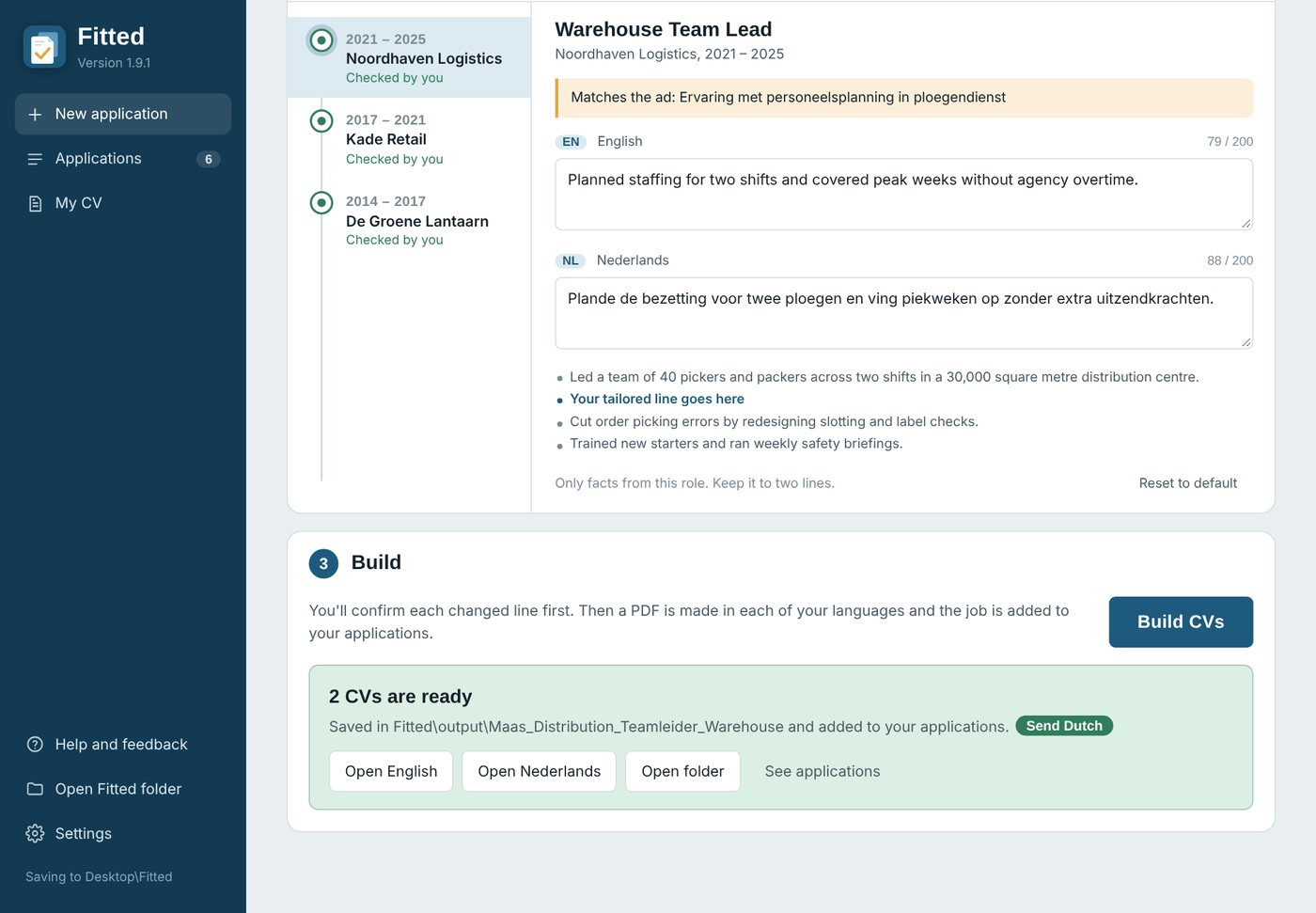
- Send ... (green label): the version that matches the ad's language. Send that one.
- Open English / Open Nederlands: opens the PDF.
- Open folder (Windows and Mac): the job's folder inside Fitted on your Desktop. On Android you get Share buttons instead, to send a PDF by email, WhatsApp or to a job site.
- See applications: jumps to your applications list.
Changing a line after building. The PDFs you send are plain text. For a last tweak, click Editable copies: the same CVs, with the tailored lines still editable in a PDF reader such as Edge, Chrome or Acrobat. PDF readers highlight those editable lines, so send the normal PDF, or change the line in Fitted and build again (the same job is updated, not added twice).
7. Applications
Every job you build CVs for lands here, newest first, with its status and files. The list is also saved as applications.xlsx in your Fitted folder.
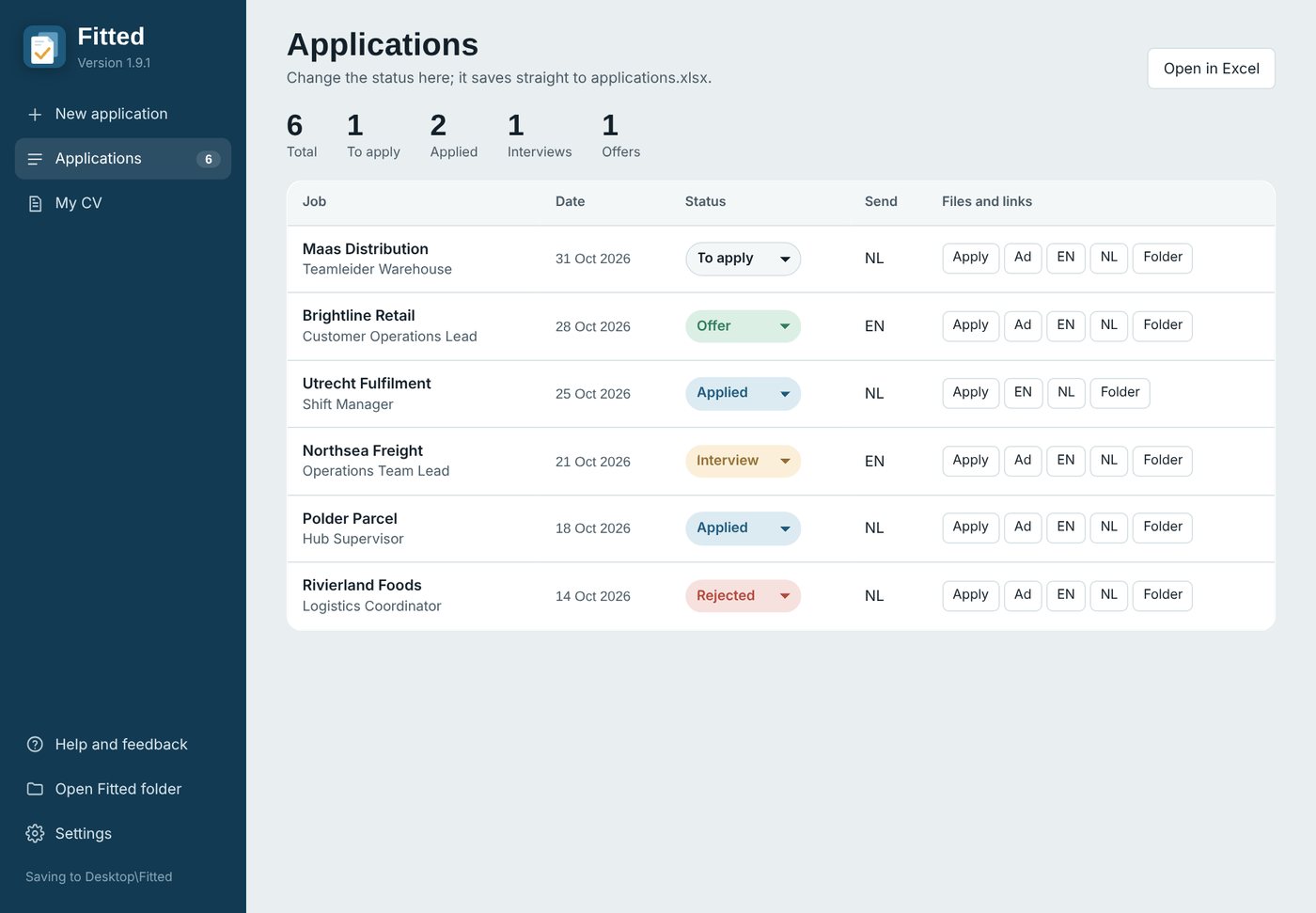
- Totals at the top: all jobs, to apply, applied, interviews, offers.
- Status: pick To apply, Applied, Interview, Offer, Rejected or Withdrawn. It saves straight away.
- Send: which language version to send.
- Apply opens the apply link, Ad the job ad.
- EN / NL (one button per language) opens that PDF.
- Folder (Windows and Mac) opens the job's folder; on Android, Share sends the PDF to send.
- Open in Excel (Mac: Open spreadsheet; Android: Share spreadsheet) opens or shares the whole list.
On a phone each job shows as a card.
8. My CV
My CV is the base of every CV you build. Tailored lines draw only on what's here, so keep it complete and true.
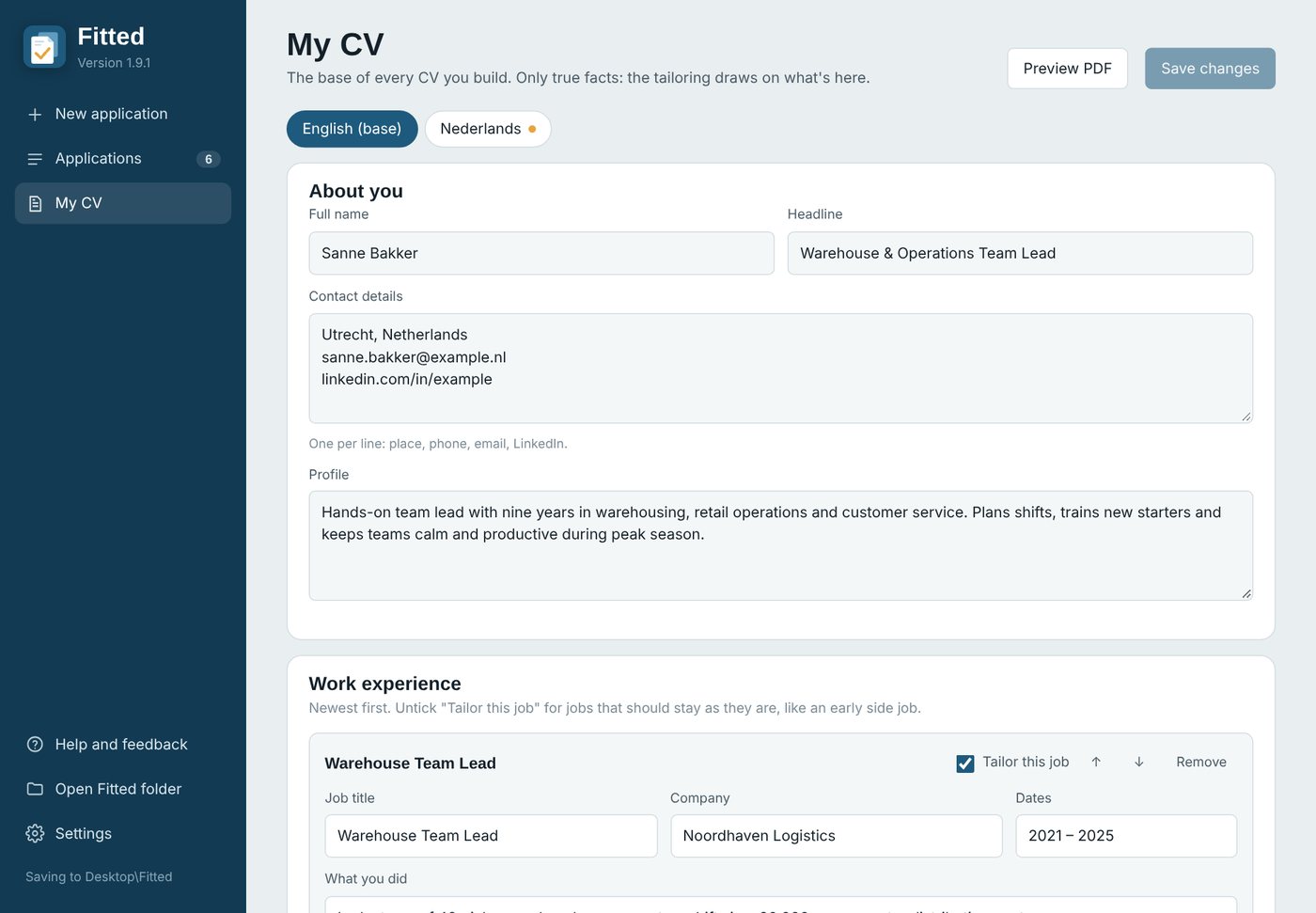
Language tabs. English (base) and each extra language have their own tab. When you change the English version, the other languages get an amber dot and an Update translation button. Translations can also be edited by hand.
Sections
- About you: name, headline, contact details (one per line), profile.
- Work experience: one card per job, newest first. Fill in job title, company, dates and what you did (one point per line).
- Tailor this job: untick it for jobs that should stay as they are, such as a student job. Those never get a tailored line.
- Default tailored line: the second point of that job when you don't tailor for an ad. A true fact, under 200 characters.
- The arrows move a job up or down; Remove deletes it.
- Key achievements, Skills, Languages, Certifications, Education, References.
- Extra true facts: things that are true but not written on your CV. The AI may use them when tailoring lines, and nothing else. One per line, and be specific about what you did and didn't do.
- Headings: rename section headings per language if you like.
Buttons
- Preview PDF: shows the CV as it will look.
- Save changes: lights up once you change something. Leaving My CV with unsaved changes asks whether to save.
- Replace with a new CV file: imports a new CV (section 2). Your current CV is kept as a backup in the Fitted folder.
9. Help, updates and your licence
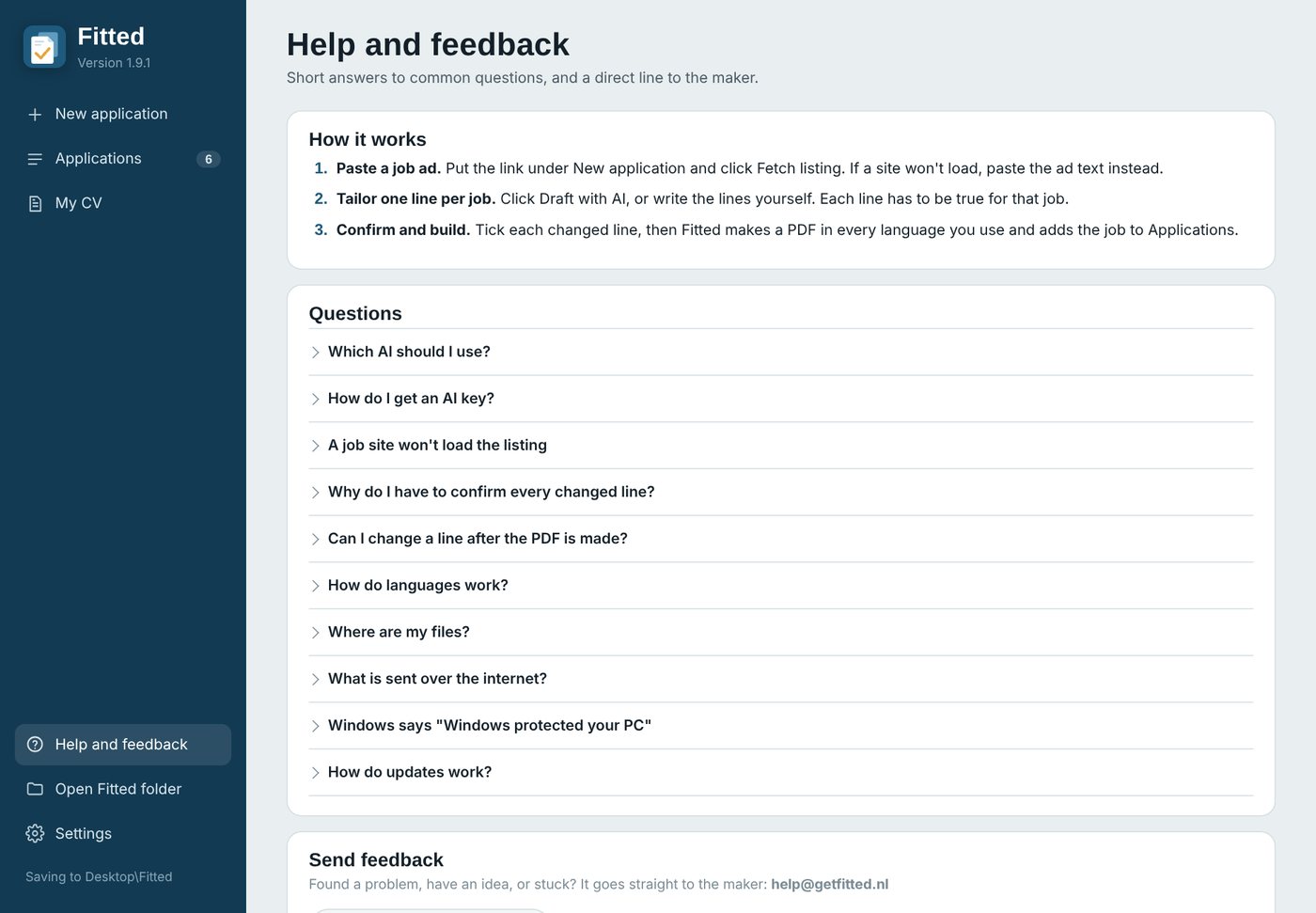
Help and feedback. Short answers to common questions, and a form that goes straight to help@getfitted.nl. Choose Problem, Idea or Question, write a few words and click Open in email (or Copy instead). Leave Add app version and system version ticked: it helps fix problems faster.
Updates. Fitted checks for a new version when it starts. A banner appears: click Update and restart (Android: Update). Your CV, settings and applications are never touched. On a Mac, keep Fitted in your Applications folder so it can update itself. On Android, allow Fitted to install updates the first time it asks.
Free trial and licence
- Fitted is free for your first 3 jobs. Building again for a job you already did doesn't count.
- After that, buy Fitted (€15: one tailored line per job) or Fitted Pro (€25: up to 3 lines per job, plus profile and skills for each ad), once, from the sidebar or Settings. Activate it with the key from your purchase email. Already have Fitted? Settings → Upgrade to Pro (€10).
- One licence works on 2 devices, in any mix of computers and phones.
- Everything you made during the trial stays yours.
- Not happy? Within 14 days you get your money back: email help@getfitted.nl with your order number.
10. Troubleshooting
| Problem | What to do |
|---|---|
| A job site won't load the listing | Some sites need a login or block apps. Copy the ad text in your browser and paste it under Listing text. |
| "Set up an AI first" | Open Settings → AI, paste a key and click Connect. |
| The AI gives an error or limit message | Free plans have limits per minute or day. Wait a moment, or pick another AI in Settings. |
| CV import says hardly any text could be read | The file is probably a scanned image. Use a PDF with real text, a Word file, or start from scratch. |
| "A file is open in another program" | Close applications.xlsx in Excel, or the PDF, and try again. |
| Windows says "Windows protected your PC" | Click More info, then Run anyway. Only the first time. |
| Mac says Fitted can't be opened | System Settings → Privacy & Security → Open Anyway. Only the first time. |
| Android won't install the file | Allow installs from your browser (or, for updates, from Fitted) when Android asks. |
| Mac update says to move Fitted | Drag Fitted into your Applications folder, open it from there and update again. |
| Something else | Help and feedback → Send feedback, or email help@getfitted.nl. |
Source for the interview figure: Huntr, Job Search Trends Q2 2026. The figure shows that tailored CVs and more interviews go together; it doesn't prove that tailoring causes them, and nobody can promise you interviews.
Fitted CV gebruikershandleiding
Fitted CV maakt in een paar minuten een cv dat past bij elke vacature. De regels die recruiters het eerst lezen, worden afgestemd op de vacature, alleen met wat je echt gedaan hebt. Je krijgt een verzendklare pdf in elk van je talen. Fitted CV is het eerste product van FITTED.
Waarom je cv per vacature aanpassen? Recruiters scannen eerst functietitels, werkgevers en trefwoorden, in een paar seconden. In een onderzoek naar bijna 2 miljoen sollicitaties kregen afgestemde cv's 1,85 keer zoveel uitnodigingen voor een gesprek (Huntr, 2026). Fitted CV maakt dat afstemmen snel, en houdt het eerlijk.
Je eerste passende cv in vijf stappen
- Haal je cv binnen. Importeer je cv als pdf of Word, of je LinkedIn- of Indeed-profiel opgeslagen als pdf (hoofdstuk 2).
- Koppel een AI. Een gratis AI is prima (hoofdstuk 3).
- Plak de link naar de vacature. Fitted haalt de vacature, het bedrijf en de functie op (hoofdstuk 4).
- Laat de AI een voorstel doen en controleer elke regel. Niets komt op je cv tot jij bevestigt dat het klopt (hoofdstuk 5).
- Kies een stijl en maak je cv's. Je krijgt per taal een pdf, en een regel in je sollicitatieoverzicht (hoofdstuk 5 en 6).
De rest van deze handleiding loopt alle pagina's van de app langs in de volgorde waarin je ze tegenkomt. De app zelf is in het Engels; de knoppen staan hier dus met hun Engelse naam.
1. Aan de slag
Download Fitted via getfitted.nl. Je eerste 3 vacatures zijn gratis.
| Apparaat | Wat je downloadt | Eerste keer openen |
|---|---|---|
| Windows 10 of 11 | Fitted.exe | Windows kan "Windows heeft uw pc beschermd" tonen. Klik op Meer informatie en dan op Toch uitvoeren. |
| Mac met Apple silicon (M1 of nieuwer) | Fitted-mac-apple-silicon.dmg | Open het bestand en sleep Fitted naar Apps (Programma's). Zegt macOS dat het Fitted niet kan controleren: Systeeminstellingen → Privacy en beveiliging → Toch openen. |
| Mac met Intel | Fitted-mac-intel.dmg | Zoals hierboven. |
| Android 7 of nieuwer | Fitted-android.apk | Tik op het gedownloade bestand. Android vraagt één keer of je installaties via je browser toestaat: zet Toestaan van deze bron aan en ga terug. |
Deze meldingen zie je alleen de eerste keer. Updates installeer je vanuit Fitted, zonder meldingen.
Voor regels schrijven, vertalen en je cv importeren heb je een AI-account nodig. Een aantal AI's heeft een gratis optie; Fitted helpt je er op de volgende pagina een in te stellen.
Waar je bestanden staan
- Windows en Mac: een map Fitted op je bureaublad, met je cv, instellingen, het sollicitatieoverzicht (applications.xlsx) en per vacature een map met de pdf's.
- Android: in de app Fitted. Met Share stuur je een pdf waarheen je wilt.
2. Je cv instellen
Dit doe je één keer. Fitted zet je bestaande cv om naar een eigen, bewerkbare versie, zonder iets toe te voegen wat er niet in staat.
Waar staat je cv nu? Kies een van de drie bronnen:
| Bron | Wat je doet |
|---|---|
| PDF or Word file (pdf- of Word-bestand) | Klik op Choose CV file en kies je cv (.pdf of .docx). |
| Klik op Open my LinkedIn profile, dan onder je naam op Meer → Opslaan als pdf. Kom terug en klik op Choose the LinkedIn PDF (meestal Profile.pdf in Downloads). Op een telefoon: gebruik de desktopversie van de LinkedIn-site. | |
| Indeed | Klik op Open my Indeed profile, open het menu ⋮ bij je cv en kies Downloaden. Kom terug en klik op Choose the Indeed PDF. |
LinkedIn en Indeed laten andere apps je profiel niet rechtstreeks lezen; daarom gaat het via de pdf.
AI that reads your CV. Is er nog geen AI ingesteld, dan vraagt het vak boven de knop erom. Kies een aanbieder, klik op Get a key, plak de sleutel en klik op Connect. In hoofdstuk 3 lees je welke AI je kiest.
Het importeren duurt ongeveer een minuut. Daarna opent Fitted My CV, zodat je elk onderdeel kunt nalopen en op Save changes klikt.
Andere manieren om te beginnen
- Start from scratch: typ je cv zelf in de editor.
- Open a Fitted data file: open een cv-data.json van een eerdere installatie of een back-up.
3. Instellingen: AI, talen, licentie
Open Settings onderaan de zijbalk (op een telefoon: het tabblad Settings). Je AI-sleutel blijft op je eigen apparaat.
Een AI kiezen. Fitted gebruikt je eigen AI-account: je betaalt de AI-aanbieder rechtstreeks, of niets met een gratis abonnement.
| AI | Kosten | Goed om te weten |
|---|---|---|
| Claude (Anthropic) | Betalen per gebruik | Het betrouwbaarst voor vertalen en cv importeren. |
| Google Gemini | Gratis abonnement | Met het gratis abonnement mag Google wat je stuurt gebruiken om zijn producten te verbeteren; Fitted toont een waarschuwing. |
| Groq | Gratis tegoed | Snel; goed voor regels schrijven. |
| OpenRouter | Gratis modellen | Eén sleutel voor veel AI-modellen. |
| Local AI (Ollama) | Gratis | Draait op je eigen computer, er gaat niets naar buiten. Installeer eerst Ollama en download een model. |
| Andere vergelijkbare dienst | Verschilt | Voor diensten die werken zoals die van OpenAI. |
Kies er een, klik op Get a key, plak de sleutel en klik op Connect. Fitted test de sleutel en kiest een geschikt model; dat kun je daarna nog wijzigen.
Use a different AI for translations and CV import. Vink dit aan om een sterkere AI te gebruiken voor het zware werk (je hele cv vertalen en importeren) en een goedkopere of gratis AI voor het schrijven van regels.
CV languages. Engels is altijd de basis. Klik op Change om tot 9 talen toe te voegen: Nederlands, Duits, Frans, Spaans, Italiaans, Portugees, Zweeds, Deens en Noors. Je AI vertaalt je cv één keer; onder My CV controleer en bewerk je elke vertaling.
Licence. Toont hoeveel gratis vacatures je nog hebt. Na je aankoop plak je hier je licentiesleutel en klik je op Activate. Eén licentie werkt op 2 apparaten; met Deactivate on this computer verhuis je hem.
Version. Toont je versie en laat je op updates controleren.
4. Nieuwe sollicitatie (New application)
Hier stem je je cv af op één vacature, in drie stappen op één pagina.
Stap 1: Job listing (de vacature)
- Plak de link naar de vacature en klik op Fetch listing. Fitted vult het bedrijf, de functie en de sollicitatielink in. Controleer ze.
- Laadt een site niet? Open Listing text en plak de tekst van de vacature die je in je browser kopieerde.
- Het label rechtsboven zegt welke cv je verstuurt, op basis van de taal van de vacature (bijvoorbeeld "Send the Dutch version").
Op Android kun je ook vanuit de vacature zelf beginnen: tik op Delen bij een vacature in je browser, LinkedIn of een vacature-app en kies Fitted.
Stap 2: Tailor your experience (je ervaring afstemmen)
- Klik op Draft with AI. Per baan schrijft de AI één regel die past bij wat de vacature vraagt, alleen met feiten uit die baan en je extra feiten.
- De gele notitie laat zien op welke eis uit de vacature de regel ingaat.
- Klik links op elke baan om de regel na te lopen, in elke taal. Pas de woorden gerust aan; de regel moet waar blijven en onder de 200 tekens.
- Het lijstje onder het tekstvak laat zien waar de regel komt: als tweede punt bij die baan.
- Reset to default zet de standaardregel van die baan terug.
Stippen links: grijs = standaardregel, oranje = voorgesteld door de AI en nog niet nagelopen, groen = door jou gecontroleerd.
Extra's van Fitted Pro (ook in de gratis proefperiode)
- Reworded points (herschreven punten): tot 2 extra punten per baan, herschreven voor de vacature met dezelfde feiten. Ze staan onder de regel van die baan; met Keep the original zet je er een terug.
- Profile and skills for this ad: onder de banen je profiel herschreven voor de functie, en je vaardigheden met de belangrijkste eerst. Keep my own profile en Keep my order maken dat ongedaan.
Met Fitted (zonder Pro) staat op die plekken een knop Get Pro.
Stap 3: Build (maken)
Klik op Build CVs. Eerst bevestig je elke aangepaste regel (volgend hoofdstuk), daarna maakt Fitted een pdf in elk van je talen en zet de vacature bij Applications.
Start over (rechtsboven) maakt de pagina leeg voor de volgende vacature.
5. Elke aangepaste regel bevestigen
Er wordt niets gemaakt voordat je elke aangepaste regel hebt bevestigd. Recruiters vragen naar wat er op je cv staat, dus elke regel moet iets zijn waar je over kunt vertellen.
Voor elke baan met een nieuwe regel zie je:
- de eis uit de vacature waar hij op ingaat (geel);
- de nieuwe regel in elke taal;
- de standaardregel die hij vervangt.
Met Pro staan herschreven punten in dezelfde stap als de regel van die baan, en laat een aparte stap je nieuwe profiel zien. Die bevestig je op dezelfde manier.
Vink This is true for this role, and I can back it up in an interview aan (dit klopt en je kunt het in een gesprek onderbouwen) en klik op Confirm and continue.
- Edit this line brengt je terug om de woorden aan te passen.
- Back gaat terug naar de vorige baan.
- Cancel stopt zonder iets te maken.
De laatste stap, Check the job details, toont bedrijf, functie, sollicitatielink, talen en welke versie je verstuurt. Vink aan dat het klopt en klik op Build.
CV-stijl. Kies in die laatste stap hoe je cv's eruitzien:
- Classic: petrolblauw, kopjes met ruimte tussen de letters.
- Modern: een groenblauwe kopbalk.
- Elegant: schreefletter, bordeauxrood.
- Minimal: zwart en grijs.
- Bold: grote naam, amberkleurige accenten.
Klik op Preview with my CV om je eigen cv in die stijl te openen. Fitted onthoudt je keuze voor de volgende vacature, en Preview in My CV gebruikt hem ook.
6. Je cv's zijn klaar
Na het maken toont een groen vak je pdf's, één per taal, en welke je verstuurt.
- Send ... (groen label): de versie in de taal van de vacature. Die verstuur je.
- Open English / Open Nederlands: opent de pdf.
- Open folder (Windows en Mac): de map van deze vacature in Fitted op je bureaublad. Op Android krijg je in plaats daarvan Share-knoppen, om een pdf te mailen, via WhatsApp te sturen of te uploaden op een vacaturesite.
- See applications: gaat naar je sollicitatieoverzicht.
Een regel aanpassen na het maken. De pdf's die je verstuurt, zijn gewone tekst. Voor een laatste wijziging klik je op Editable copies: dezelfde cv's, waarin de afgestemde regels nog te bewerken zijn in een pdf-lezer zoals Edge, Chrome of Acrobat. Pdf-lezers markeren die bewerkbare regels, dus verstuur de gewone pdf, of pas de regel aan in Fitted en maak de cv's opnieuw (dezelfde vacature wordt bijgewerkt, niet dubbel toegevoegd).
7. Sollicitaties (Applications)
Elke vacature waarvoor je cv's maakt, komt hier, nieuwste bovenaan, met status en bestanden. Het overzicht staat ook als applications.xlsx in je map Fitted.
- Totalen bovenaan: alle vacatures, nog te solliciteren, gesolliciteerd, gesprekken, aanbiedingen.
- Status: kies To apply, Applied, Interview, Offer, Rejected of Withdrawn. Wordt meteen opgeslagen.
- Send: welke taalversie je verstuurt.
- Apply opent de sollicitatielink, Ad de vacature.
- EN / NL (een knop per taal) opent die pdf.
- Folder (Windows en Mac) opent de map van de vacature; op Android stuurt Share de pdf die je moet versturen.
- Open in Excel (Mac: Open spreadsheet; Android: Share spreadsheet) opent of deelt het hele overzicht.
Op een telefoon staat elke vacature op een eigen kaart.
8. Mijn cv (My CV)
My CV is de basis van elke cv die je maakt. Afgestemde regels gebruiken alleen wat hier staat, dus houd het compleet en waar.
Taaltabbladen. Engels (de basis) en elke extra taal hebben een eigen tabblad. Pas je de Engelse versie aan, dan krijgen de andere talen een oranje stip en een knop Update translation. Vertalingen kun je ook zelf bewerken.
Onderdelen
- About you: naam, kopregel, contactgegevens (één per regel), profiel.
- Work experience: per baan een kaart, nieuwste bovenaan. Vul functie, bedrijf, periode en wat je deed in (één punt per regel).
- Tailor this job: zet dit uit voor banen die moeten blijven zoals ze zijn, zoals een bijbaan tijdens je studie. Die krijgen nooit een afgestemde regel.
- Default tailored line: het tweede punt van die baan als je niet afstemt op een vacature. Een waar feit, onder de 200 tekens.
- Met de pijlen zet je een baan hoger of lager; Remove verwijdert hem.
- Key achievements, Skills, Languages, Certifications, Education, References (resultaten, vaardigheden, talen, certificaten, opleiding, referenties).
- Extra true facts: dingen die waar zijn maar niet op je cv staan. De AI mag ze gebruiken bij het afstemmen, en verder niets. Eén per regel; wees precies over wat je wel en niet deed.
- Headings: pas per taal de kopjes van de onderdelen aan als je wilt.
Knoppen
- Preview PDF: laat de cv zien zoals hij wordt.
- Save changes: wordt actief zodra je iets wijzigt. Verlaat je My CV met niet-opgeslagen wijzigingen, dan vraagt Fitted of je wilt opslaan.
- Replace with a new CV file: importeert een nieuwe cv (hoofdstuk 2). Je huidige cv blijft als back-up in de map Fitted.
9. Hulp, updates en je licentie
Help and feedback. Korte antwoorden op veelgestelde vragen, en een formulier dat rechtstreeks naar help@getfitted.nl gaat. Kies Problem, Idea of Question, schrijf een paar woorden en klik op Open in email (of Copy instead). Laat Add app version and system version aangevinkt: zo is een probleem sneller opgelost.
Updates. Fitted kijkt bij het starten of er een nieuwe versie is. Er verschijnt een balk: klik op Update and restart (Android: Update). Je cv, instellingen en sollicitaties blijven onaangeroerd. Houd Fitted op een Mac in de map Apps, zodat het zichzelf kan bijwerken. Sta op Android de eerste keer toe dat Fitted updates installeert.
Gratis proberen en licentie
- Je eerste 3 vacatures zijn gratis. Opnieuw maken voor een vacature die je al deed, telt niet mee.
- Daarna koop je eenmalig Fitted (€15: één afgestemde regel per baan) of Fitted Pro (€25: tot 3 regels per baan, plus profiel en vaardigheden per vacature), via de zijbalk of Settings. Activeer hem met de sleutel uit je aankoopmail. Heb je Fitted al? Settings → Upgrade to Pro (€10).
- Eén licentie werkt op 2 apparaten, in elke combinatie van computers en telefoons.
- Alles wat je tijdens het proberen maakte, blijft van jou.
- Niet tevreden? Binnen 14 dagen krijg je je geld terug: mail help@getfitted.nl met je bestelnummer.
10. Problemen oplossen
| Probleem | Wat je doet |
|---|---|
| Een vacaturesite laadt niet | Sommige sites vragen een login of blokkeren apps. Kopieer de vacaturetekst in je browser en plak hem onder Listing text. |
| "Set up an AI first" | Open Settings → AI, plak een sleutel en klik op Connect. |
| De AI geeft een fout of limietmelding | Gratis abonnementen hebben een limiet per minuut of per dag. Wacht even, of kies een andere AI in Settings. |
| Importeren meldt dat er nauwelijks tekst te lezen is | Het bestand is waarschijnlijk een scan. Gebruik een pdf met echte tekst, een Word-bestand, of begin from scratch. |
| "A file is open in another program" | Sluit applications.xlsx in Excel, of de pdf, en probeer het opnieuw. |
| Windows meldt "Windows heeft uw pc beschermd" | Klik op Meer informatie en dan op Toch uitvoeren. Alleen de eerste keer. |
| Mac zegt dat Fitted niet geopend kan worden | Systeeminstellingen → Privacy en beveiliging → Toch openen. Alleen de eerste keer. |
| Android installeert het bestand niet | Sta installaties via je browser toe (of, voor updates, via Fitted) als Android erom vraagt. |
| Mac-update vraagt Fitted te verplaatsen | Sleep Fitted naar de map Apps, open het vanaf daar en update opnieuw. |
| Iets anders | Help and feedback → Send feedback, of mail naar help@getfitted.nl. |
Bron van het cijfer over gesprekken: Huntr, Job Search Trends Q2 2026. Het cijfer laat zien dat afgestemde cv's en meer gesprekken samengaan; het bewijst niet dat afstemmen de oorzaak is, en niemand kan je gesprekken beloven.